JavaScript brings interactivity to websites through the use of drop-down menus, pop-ups, form validation, and other functionalities. However, before implementing these, it is important that you understand how to run JavaScript. Fortunately, you do not have to worry about complicated settings for starting. Here is how to run JavaScript easily.
Table of Contents
Running JavaScript In The Browser Console
All web browsers come with an embedded utility that allows you to execute JavaScript immediately without any need for downloads or installations; all you have to do is open it and go.
- Access DevTools: Click on any part of a webpage and select the option called “Inspect” or use the shortcut F12 (Windows)/Cmd + Option + I (Mac).
- Locate the Console Tab: Search for the tab at the top called "Console" and click it.
- Input Code: Click into the console space and type any line of JavaScript, such as console.log("Hello World").
- Press Enter Key: Press Enter, and your browser will execute your code immediately.
- Clear the Console: You can use the command clear() or click on the circle-with-a-line icon to clear previous output.
Example:
console.log("Hello, World!");
let sum = 5 + 10;
console.log(sum); // Output: 15
Steps to run it:
- Open any website in Chrome, Firefox, or Edge.
- Right-click and choose "Inspect," then click "Console."
- Paste the code above and press Enter.
- See "Hello, World!" and "15" printed instantly.
Running JavaScript With An HTML File
And this is how JavaScript is inserted into actual websites, where your JavaScript takes charge of what goes on in that web page.
- Creating an HTML File: Start a text editor (Notepad, VS Code, etc.) and create an index.html file.
- Inserting the <script> Tag: Insert the <script> tag into the index.html file where your code will reside.
- Writing Your JavaScript Code: Write your JavaScript code inside the <script> tag pair.
- Saving the File: Save your wo
 rk, making sure to keep the extension as .html.
 - Running the Code: Simply double-click the file to open it in a browser window.
Example:
<!DOCTYPE html>
<html>
<head>
  <title>My First JS Page</title>
</head>
<body>
  <h1>Check the console!</h1>
  <script>
    alert("Welcome to JavaScript!");
    console.log("This runs when the page loads.");
  </script>
</body>
</html>
Steps to run it:
- Copy the code above into a new file named index.html.
- Save the file on your desktop.
- Double-click it; it should open in your default browser.
- A pop-up alert will be shown, and the console message will appear in DevTools.
Running JavaScript Using Node.js
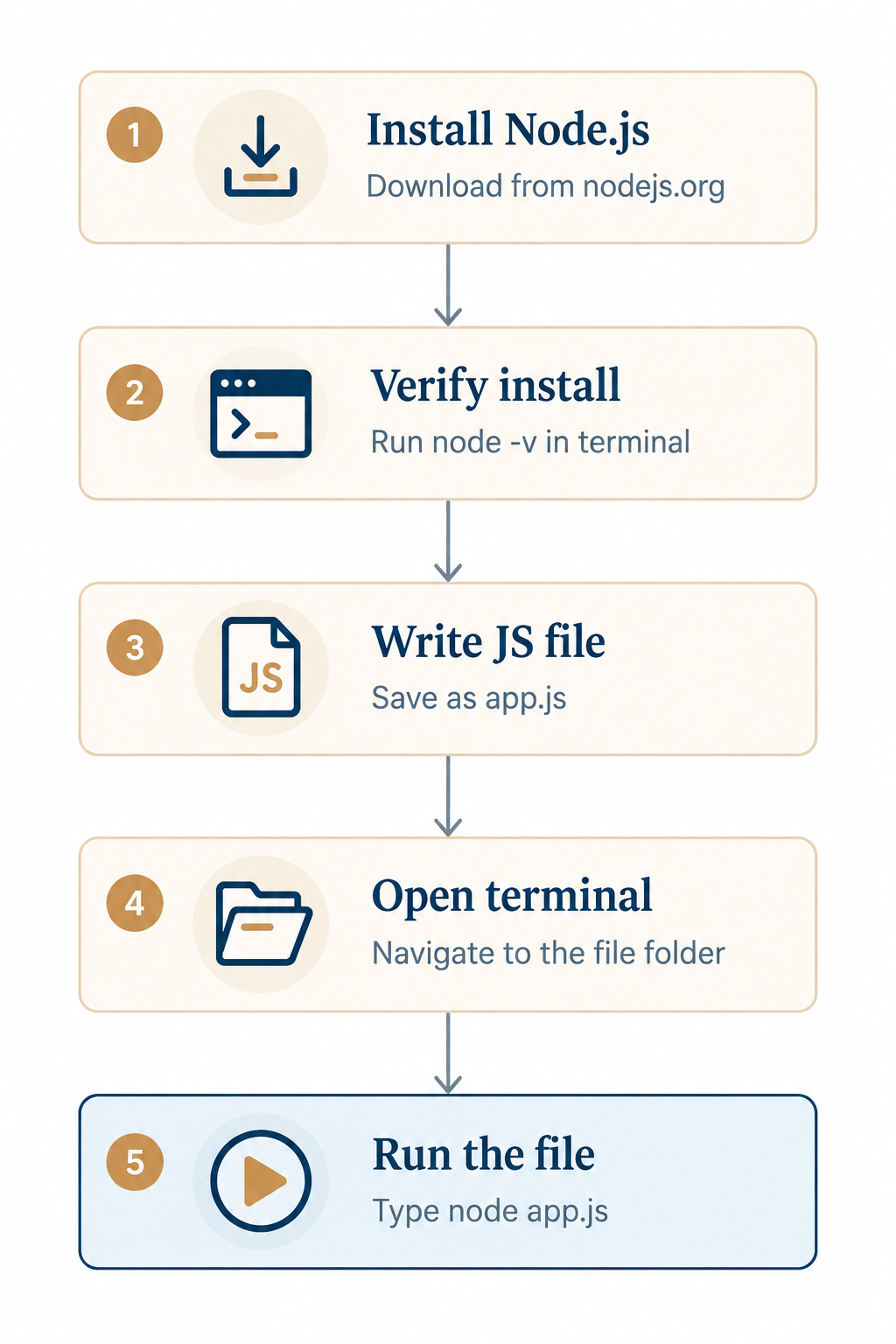
JavaScript can be executed not only within the browser but also outside it using Node.js. It allows running JavaScript files on the computer without a browser.
- Download Node.js: You should visit nodejs.org and install the LTS version of Node.js for your OS.
- Install the Software: Execute the installer and press "Next" in the setup wizard to install the software.
- Check Whether Node.js is Installed: Type node -v in the terminal to make sure that Node.js has been installed successfully.
- Create A JS File: Create a JS file using any text editor with your JavaScript code inside and save it as a .js file, e.g., app.js.
- Run in Terminal: Enter the directory where you saved the JS file in the terminal and type node app.js.
Example:
// app.js
function greet(name) {
  return `Hello, ${name}! Welcome to Node.js.`;
}

console.log(greet("Aditi"));
Steps to run it:
- Install Node.js from nodejs.org.
- Open your terminal and type node -v to check that it worked.
- Save the code above as app.js in a folder.
- Type cd in the terminal, followed by your folder path, then run node app.js.
- Output, you'll see "Hello, TutorialforGeeks! Welcome to Node.js." printed in the terminal.
Running JavaScript In Online Editors
However, if you do not want to install any software on your computer, there is an option for you to edit JavaScript code using online tools.
- Choosing a Website: You could use CodePen, JSFiddle, Replit, and PlayCode; all these websites are compatible with every web browser.
- Creating a New Project: Simply visit any of the above sites and click on the "New Pen," "New Fiddle," or "Create Repl" button.
- Editing Code: Write your JavaScript code in the JS panel/file.
- Run Code Automatically: These websites automatically run the code written, or you could press the "Run" button to execute it.
- Sharing Your Code: Using the "Share" or "Save" function of the website, generate a link that can be edited/visited by others.
Example (works on any of these platforms):
let name = "World";
let heading = document.createElement("h2");
heading.textContent = `Hello, ${name}!`;
document.body.appendChild(heading);
Steps to run it:
- Go to codepen.io (or any editor of your choice).
- Click the JS panel and paste the code above.
- Watch the output preview update instantly on the right.
- No saving or installing needed.
Running JavaScript In VS Code
The most commonly used code editor among developers is Visual Studio Code, which allows you to run JavaScript smoothly with some extensions.
- Installation of Visual Studio Code: Get it for free from the website code.visualstudio.com and install it like a normal application.
- Node Extension Installation: Node.js needs to be installed separately beforehand (refer to the Node.js section mentioned earlier) in order for VS Code to execute .js files.
- Opening the Project Folder: File > Open Folder to open your JavaScript project folder.
- Integrated Terminal Usage: Open a command-line interface within VS Code by clicking on Terminal > New Terminal.
- Executing Your Script: Just enter the command 'node filename.js' to execute your script in that command-line interface.
Example:
// calculator.js
const num1 = 20;
const num2 = 4;

console.log("Sum:", num1 + num2);
console.log("Difference:", num1 - num2);
console.log("Product:", num1 * num2);
Steps to run it:
- Install VS Code and open it.
- Create a new file, name it calculator.js, and paste the code above.
- Open the integrated terminal (Terminal > New Terminal).
- Type node calculator.js and press Enter.
- See all three results printed neatly in the terminal.
Common Errors And Fixes
Even simple JavaScript code can throw errors when you're just starting. Knowing what these mean saves a lot of frustration. Even the simplest code in JavaScript may create some problems if you are not familiar with the language. Knowledge of those errors may save you from many problems.
- Fixing Syntax Error: Typically occurs due to missing a bracket, comma, or quote; review the particular line that is highlighted in the error message.
- Variable Not Defined: Occurs if a variable is used before defining it; define it using let, const, or var.
- File Does Not Exist: Happens in Node.js if the file name or its path was typed incorrectly; verify that the spelling and location are correct.
- Console Output Not Visible: If console.log produces no output, make sure that you open the DevTools window before opening the web page.
- Capitalization Problem: In JavaScript, Name and name are treated as two different variables.
Example of a common error:
console.log(age); // ReferenceError: age is not defined

// Fix:
let age = 21;
console.log(age); // Output: 21
Conclusion
JavaScript execution is not difficult after you know where to find the answer. Novices can begin with the browser console, proceed to the HTML file for actual web pages, and finally make use of Node.js or VS Code. The online editor can be very useful when all you need is to test the code. Choose any method based on what you are working on and forget about memorizing each step; practice makes perfect.
Frequently Asked Questions
1. Do I need to install anything to start running JavaScript?
No. Every modern browser has JavaScript built in, so you can start using the browser console right away without installing anything.
2. What's the difference between running JS in a browser versus Node.js?
The browser console runs JavaScript for webpages and has access to things like document and alert. Node.js runs JavaScript outside the browser, which is used for servers, scripts, and backend applications.
3. Which method is best for absolute beginners?
The browser console is the easiest starting point since it requires zero setup; just open DevTools and start typing code.
4. Can I run JavaScript on my phone?
Yes, using online editors like Replit or CodePen, which work in mobile browsers and don't require any installation.
5. Why does my code show an error even though it looks correct?
Common culprits are missing semicolons, mismatched brackets, or typos in variable names. Always read the exact error message; it usually points to the exact line causing the issue.

0 Comments