JavaScript turns web pages interactive. Although HTML is responsible for building web pages, JavaScript gives web pages functionality such as clickable buttons, form validation, and slideshows.
There is no special requirement for using JavaScript except having a web browser and a text editor. This tutorial describes the various methods of using JavaScript on your HTML pages, placement, functioning, and possible mistakes for beginners.
Table of Contents
What Is JavaScript in HTML
Before you write a line of code, it's helpful to understand what JavaScript really is and what happens when you put your code in an HTML file. Let’s look at the basics.- Core Purpose: When you insert JavaScript into HTML, it lets a website react to user interactions, like clicking, typing, or scrolling, instead of showing static information.
- Browser Language: JavaScript is the language that any web browser understands without installing additional programs and plugins.
- Work Together with HTML: JavaScript does not compete with HTML but interacts with both HTML (format) and CSS (design).
- The Purpose of <script>: When the JavaScript code is put into the special <script> element of HTML, it informs the browser that the content needs to be executed, not to be shown as text.
- Run Sequentially: An HTML page is read from top to bottom by the browser, and JavaScript starts working as soon as the <script> tag is encountered.
<!DOCTYPE html>
<html>
<head>
  <title>My First Page</title>
</head>
<body>
  <h1>Hello World</h1>

  <script>
    alert("JavaScript is running!");
  </script>
</body>
</html>
Ways to Add JavaScript to HTML
There are several methods through which you can integrate JavaScript code into an HTML document, and they apply to different contexts. Familiarity with all these methods allows you to select the appropriate one as your projects become more complex.- JavaScript Inline: The code is embedded directly in the HTML tag attribute, such as onclick, and executes only when that particular event occurs.
- JavaScript Internal: The code is embedded within a <script> tag in the same HTML document either in the <head> section or close to the ending </body> tag.
- JavaScript External: The code is embedded in a separate .js file and referenced in the HTML file by the src attribute of the <script> tag.
- Event Handlers: The HTML tags may have attributes like onmouseover and onchange, which would run a small JavaScript code without writing a full script tag.
- JavaScript URLs: This is very rarely used nowadays, as it embeds the JavaScript code right in the href attribute of an HTML link tag using javascript.
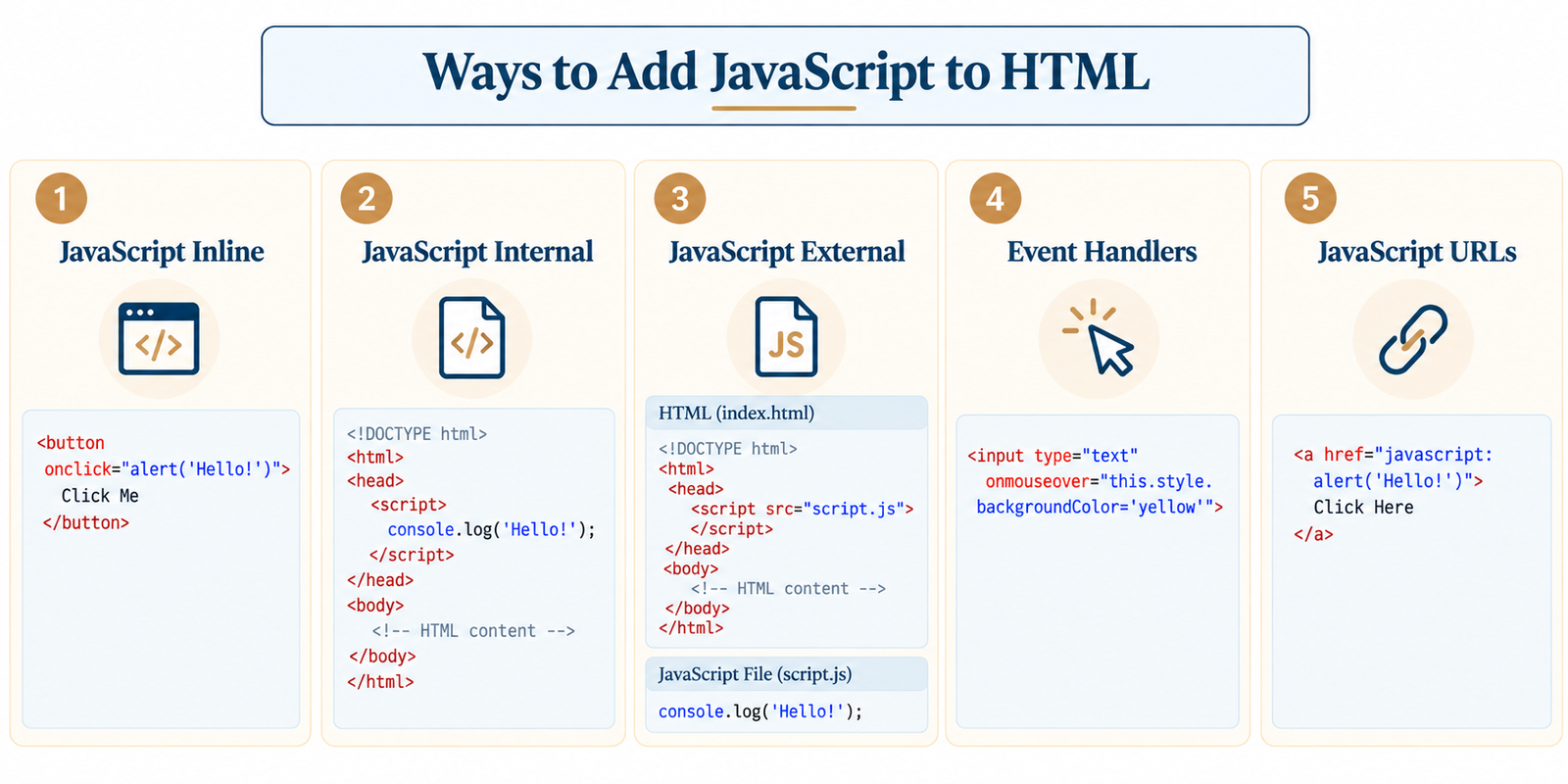
The Script Tag Explained
This script tag is the most significant tag for implementing JavaScript into an HTML document, and there are certain things that you should be careful about because of them. This article will cover all aspects of its behavior.- Opening and Closing: The <script> tag must always have both an opening and a closing </script> tag if it has code written within it.
- src Attribute: While using the link to another file, the src attribute carries the path to the file, and no code must be written between the opening and closing tags.
- type Attribute: Browsers nowadays consider that the code is JavaScript automatically, so the type="text/javascript" attribute is no longer needed. type= "module" is used for a new version of JavaScript known as modules.
- Multiple <script> Tags: An HTML document may have multiple <script> tags, but all of them are executed according to the order in which they are placed.
- Comments: Within a script, // indicates a single-line comment, and /* ... */ indicates a multi-line comment, which are ignored by the browser when executing the code.
<script src="app.js"></script>

<script>
  // This is a single-line comment
  /* This is a
     multi-line comment */
  console.log("Comments help explain code.");
</script>

<script type="module" src="modernApp.js"></script>
Script Placement Best Practices
The location where you place the <script> tag on the page could influence how quickly the page loads. The reasons behind this explain why the decision must be made depending on your project requirements.- Placement in Head: The placement of <script> in the <head> section implies that it will be executed even before all other elements of the page, thus making page loading slower.
- Bottom of Body: It is widely used by many beginners, since HTML content is downloaded and displayed first, and after that, the execution of the script is done.
- Defer Attribute: Adding defer to a <script> element implies that the browser will load the file in a separate thread but will execute it only when the whole HTML document is loaded.
- Async Attribute: Async will force the browser to download and execute the file as soon as possible without waiting for the rest of the HTML file.
- Preventing Render Blocking: The script, which is placed in the head section without defer and async, can block the display of the page till its loading, so beginners are recommended to use the bottom-of-body approach or defer.
<head>
  <script src="analytics.js" async></script>
  <script src="main.js" defer></script>
</head>
<body>
  <h1>Content loads smoothly</h1>
  <!-- Bottom-of-body alternative -->
  <script src="fallback.js"></script>
</body>
Inline Event Handlers
It is possible to invoke JavaScript using HTML elements directly via certain attributes associated with specific user events such as click or typing. Event handlers are one of the simplest methods that beginners can use.- OnClick Event: The onclick attribute triggers a JavaScript function when a particular HTML element, such as a button or link, is clicked by the user.
- OnChange Event: The onchange attribute triggers a JavaScript function when the value of the selected input field, select box, or checkbox is changed, after which the control is focused.
- OnMouseover Event: The onmouseover attribute triggers a JavaScript function when the mouse pointer is hovered over an element.
- OnLoad Event: The onload attribute triggers a JavaScript function automatically after an HTML element, such as an image, has been completely loaded.
- Combining with Function: Rather than having lengthy JavaScript functions written in an attribute, it is best to call a function with the help of that attribute.
An inline event handler can be added directly to an HTML element. For example, the onclick attribute can run JavaScript when a button is clicked.
<button onclick="this.innerText = 'Clicked!'"> Click Me </button>
External vs Internal vs Inline JavaScript
The three methods can all add JavaScript to an HTML page, but they differ in how well they scale, how reusable the code is, and how easy the project is to maintain. This comparison makes it easier to choose the right approach.| Basis of Comparison | Inline JavaScript | Internal JavaScript | External JavaScript |
|---|---|---|---|
| Where code is written | Directly inside an HTML element | Inside a <script> tag in the HTML file | In a separate .js file |
| Reusability | Low | Limited to the same HTML page | High; one file can be used across multiple pages |
| Code separation | Poor | Good | Excellent |
| Maintainability | Difficult for larger projects | Easier for small projects | Best for larger projects |
| Page organization | HTML and JavaScript are mixed | JavaScript stays within the HTML file | HTML and JavaScript remain separate |
| Browser caching | No separate file to cache | No separate JavaScript file | External files can be cached |
| Best suited for | Small tests and simple event actions | Small, page-specific scripts | Medium to large projects |
| Typical example | onclick="alert('Hello')" | <script> ... </script> | <script src="app.js"></script> |
| Recommended for large projects? | No | Usually no | Yes |
Common Mistakes to Avoid
Even straightforward JavaScript configurations may fail in subtle ways, particularly for novice programmers who have only written their first few scripts. Awareness of the most common mistakes can help prevent much future debugging hassle.- Missing the Closing Tag: Not having the </script> tag results in the entire HTML document stopping rendering properly or behaving unexpectedly.
- Incorrect Path: Incorrectly typing the path or file name within the src tag is one of the main reasons why the external script cannot be accessed.
- Blocking the Scripts: When putting large amounts of scripts at the top of the HTML document without using the defer tag, websites seem to have poor performance because of the delay of HTML loading.
- Being Case Sensitive: As mentioned above, JavaScript is case-sensitive, meaning that console.log and Console.Log are two completely different things.
- Missing the Console: Novice developers tend to overlook the browser's developer console, which is a place where all errors are listed.
<!-- Incorrect: wrong file path -->
<script src="scriptt.js"></script>

<!-- Correct -->
<script src="script.js"></script>

<script>
  // Correct case usage
  console.log("Check the browser console for errors!");
</script>
Common Abbreviations in JavaScript
While you continue reading more about JavaScript, there are various abbreviations that you will come across frequently. Understanding what these abbreviations mean will go a long way in making things easier for you in future studies.- Meaning of DOM: DOM is an abbreviation for Document Object Model, which is basically the model of the HTML page inside the browser that is readable and editable using JavaScript.
- Meaning of JS: JS is just the shorthand for "JavaScript," usually used when naming files like script.js or main.js.
- Meaning of API: API is an abbreviation for Application Programming Interface, which basically means either internal or external utilities that JavaScript can call upon to do something, for instance, get some data.
- Meaning of JSON: JSON is an abbreviation for JavaScript Object Notation, which is basically a lightweight format used to store and transport data back and forth from the webpage to the server.
- Meaning of BOM: BOM is an abbreviation for Browser Object Model, which basically models everything related to the browser window (not what it displays).
<script>
  // DOM example: selecting and changing an element
  document.getElementById("title").textContent = "Updated!";

  // JSON example: converting data to a JSON string
  const user = { name: "Alex", age: 25 };
  console.log(JSON.stringify(user));

  // BOM example: browser window information
  console.log(window.innerWidth);
</script>
Conclusion
Incorporating JavaScript into HTML can be an easy task once one masters the basics, including the <script> tag, methods of embedding (which include internal, inline, and external), and the optimal location within the HTML page where these scripts should be embedded. Internal and inline script tags are perfect when one is just learning how to program in JavaScript; however, for large-scale coding tasks, the use of external JavaScript files will come in handy since it will ensure organization and reuse of the code. Given that this guide provides examples on how to do this, anyone is well placed to create and test their own JavaScript code in HTML pages.
Frequently Asked Questions
1. Do I need to install anything to use JavaScript in HTML?
No. Every modern web browser (Chrome, Firefox, Safari, Edge) already understands JavaScript, so you only need a text editor and a browser to start.
2. Can I use more than one <script> tag on the same page?
Yes. A page can have any number of <script> tags, and the browser runs them in the order they appear, from top to bottom.
3. What is the difference between defer and async?
defer waits for the entire HTML page to load before running the script, while async runs the script as soon as it finishes downloading, even if the HTML is not fully loaded yet.
4. Is inline JavaScript bad practice?
It is not "bad" for small tests, but it is discouraged for real projects because it mixes code with structure, making the page harder to read and maintain as it grows.
5. Why isn't my external JavaScript file working?
The most common reasons are an incorrect file path in the src attribute, a missing file, or a typo in the script itself. Checking the browser's developer console will usually reveal the exact issue.

0 Comments